
Why new Flow versions appear on deployment and how to fix it
A deployment creates a new Salesforce Flow version you never asked for. Here is the metadata cause and a four-step retrieve and redeploy fix.
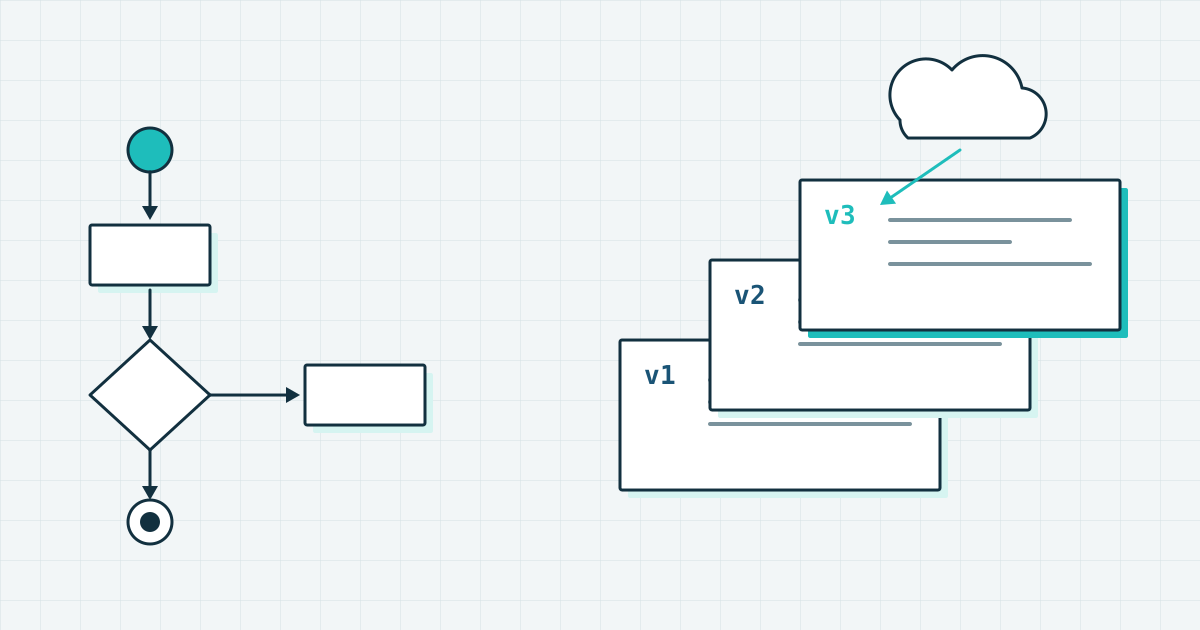
Your deployment result says a Flow changed. You know it did not, because nobody has touched it in months. Salesforce created a new version anyway, and if that Flow was already close to the 50-version limit, the whole deployment failed on it.
The cause is rarely in the Flow logic. It is in the metadata around it.
Why Salesforce creates a version you did not ask for
On deployment, Salesforce compares the Flow XML you send with the Flow already in the target org. Any difference counts as a change and produces a new version. The differences are often invisible in a normal review of the file. They are deprecated properties, or values Salesforce generates itself when it saves a Flow.
So your source control holds one variant of the metadata, the target org expects another, and every deployment registers as a change.
How to find the difference
Work in a sandbox, from a Git branch with no unstaged changes. That way the only new content in your working tree is what the retrieve brings back.
1. Deploy the Flow to the sandbox
sf project deploy start --metadata Flow:MyProblematicFlow --target-org MySandboxThe deployment result shows the Flow with status “Changed”, and the sandbox now has a new version.
2. Retrieve the Flow from the sandbox
sf project retrieve start --metadata Flow:MyProblematicFlow --target-org MySandboxCompare the retrieved XML with the version in your branch.
3. Look for the small differences
The usual suspects:
- Deprecated properties, for example
<migratedFromWorkflowRuleName>. - Auto-generated metadata, for example
locationX,locationYorprocessMetadataValues.
4. Deploy the retrieved version again
Commit the retrieved XML and deploy it to the same sandbox. If the result now says “Unchanged”, the metadata in your branch matches what Salesforce expects.
What this fixes
The retrieve, analyse, commit and redeploy loop brings your source control copy of the Flow in line with the metadata the target org expects. Deployments stop producing versions nobody asked for, the Flow stays under the 50-version limit, and the result of a deployment becomes predictable again.
What to do next
Run the same check on every Flow that reports “Changed” in a deployment although you did not edit it. Keep the retrieved XML as the version in source control, and the phantom versions stop.