
How to snooze a Service Cloud case until a set time
How to snooze a Service Cloud case in Salesforce until a set time, then let Omni-Channel route it back without changing the case Status.
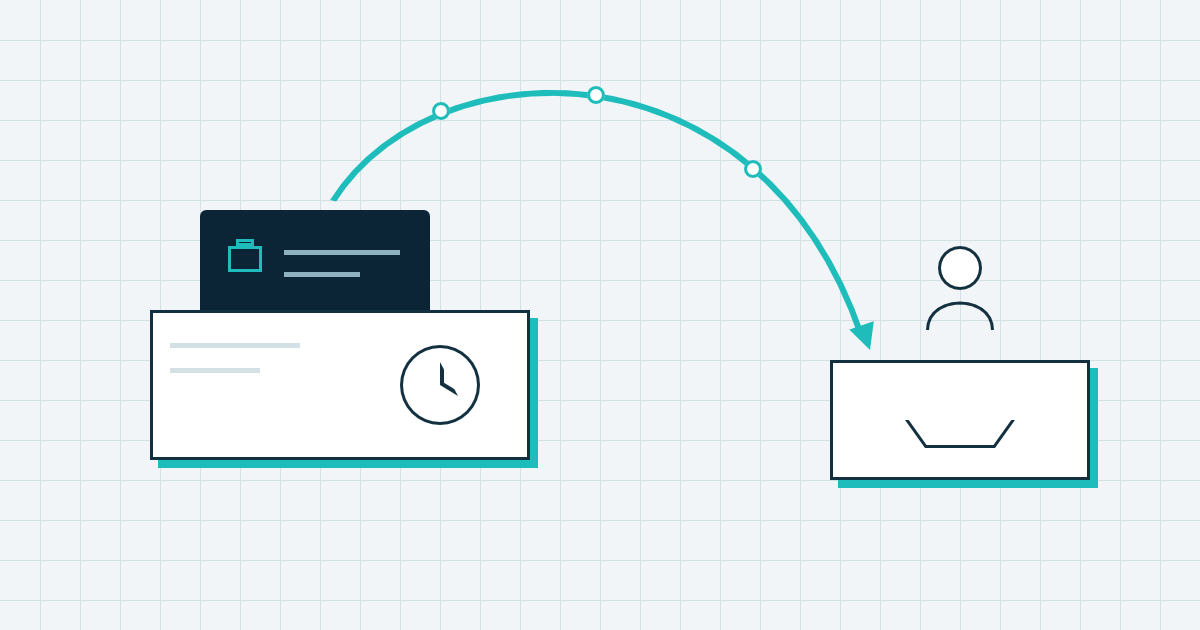
A customer promises to send a photo of the damaged part on Thursday, and until then the case cannot move. The agent needs it back on Thursday, without having to remember it.
A proper snooze takes the case out of the agent’s name and keeps its Status. It brings the case back at a set time, to an owner the agent chooses. JB Case Scheduler, a free app on AppExchange, does this with a holding queue and a scheduled job.
How teams keep track of a case waiting on a customer
Without a snooze, agents use a workaround. They keep the case open in their own name, create a task on it, or write a reminder in their calendar.
Each one works for one agent on a quiet day. When that agent is busy or away, the follow-up depends on their memory, and the promise to the customer slips.
Enhanced Omni-Channel adds a Paused status. Omni-Channel, the Service Cloud feature that routes work to available agents, does not route paused work. Salesforce intends a paused case to be completed later by its current owner, so the case still waits in the agent’s name.
What a snooze needs to do
A snooze that the whole team can rely on does five things:
- It takes the case out of the agent’s name, so nobody has to remember it.
- It keeps the case Status as it is, so your status-based automation and reports keep working.
- It brings the case back at a set date and time.
- It hands the case to an owner the agent picks: themselves, the default queue, or another queue.
- It records why the case waited.
How Case Scheduler snoozes a case
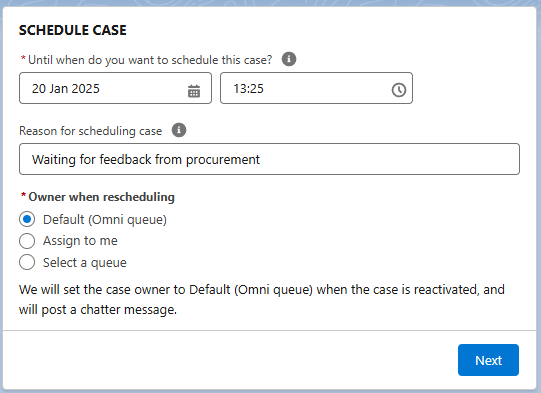
- The agent schedules the case. The Schedule Case component, a Flow on the Case record page, asks for a date and time, a reason, and the owner after reactivation.
- The case waits in a queue. The owner changes to the Case Scheduler queue (API name JB_Case_Scheduler), so the case leaves the agent’s list. The component shows when the case returns and to whom. A Reactivate case button brings it back early.
- A scheduled job hands it back. Every 15 minutes by default, a job checks for cases that are due. It sets the chosen owner, posts the reason in the case feed, and notifies the scheduling agent with a Chatter post.
- Omni-Channel routes it. If the new owner is an Omni-Channel queue, Omni-Channel offers the case to the next free agent.
The case feed keeps the history: one post when the agent schedules the case, and one when it comes back. Anyone who opens the case sees why it waited.
What Case Scheduler does not do
- It does not return a case on the exact minute. The job runs on an interval, so a case can come back up to one refresh interval after the chosen time.
- It does not change the Status field, including Paused. If you use entitlements, milestones, or escalation rules, adjust them so a snoozed case does not escalate before its date.
- It does not jump the queue. A case that returns to an Omni-Channel queue joins the back of that queue. If these cases need priority, send them to a queue with a higher priority.
- It does not return a case when the customer replies. The case waits until its set time. If the reply comes first, open the case and click Reactivate case.
- It does not touch existing cases. Nothing moves until an agent schedules a case.
How to try it in your org
Case Scheduler is free. It needs Service Cloud Enterprise, Unlimited, or Developer edition, with Omni-Channel enabled.
- Install from AppExchange, into a sandbox first.
- Follow the installation guide to create the settings, schedule the reactivation job, and add the component to the Case record page.
- Schedule a test case and check that it comes back to the owner you chose.
The JB Case Scheduler page shows each screen, and the FAQ answers the questions admins ask before they install.